
Click here to view article in full screen.
You can watch our video, and/or follow our step by step instructions below!
Click here to view this video in full screen.
To receive/check-in packages from PS|Track:
- Open the PS|Track web application.
- From the left menu, click on receiving.
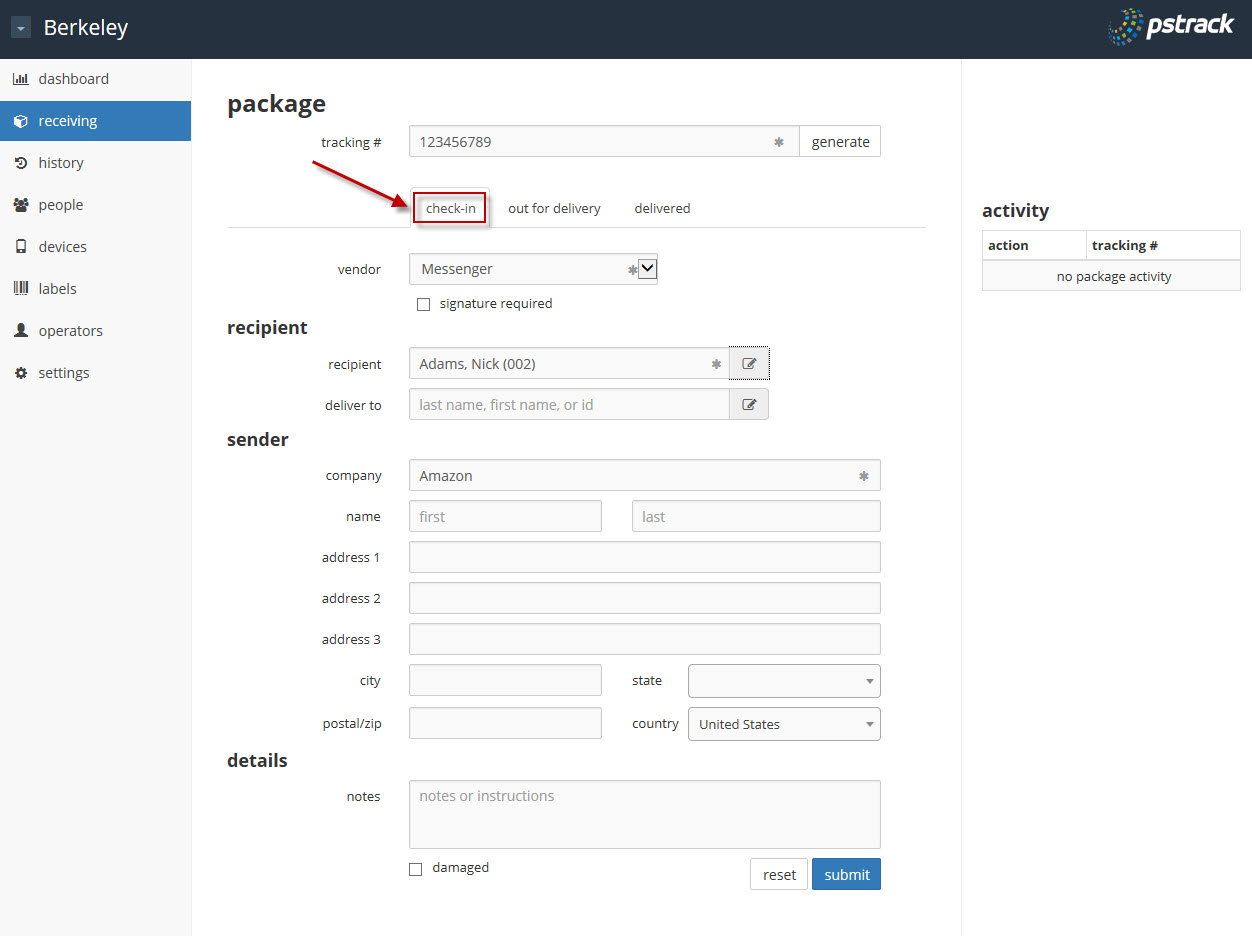
- The check-in tab is the default landing tab. Enter the tracking number by either manually typing it in, using a hand scanner connected to the computer, or clicking on the generate button if a tracking number is not available.
- Enter the rest of the information as applicable or desired. Fields with an asterisk are required.
- Click on the submit button when finished.
- A Package Delivery Receipt will automatically be queued to print. Continue with print job if required or desired. Cancel the print job if not needed.
tags: dashboard, receiving, packages
0 Comments