
Click here to view this article in full screen.
You can watch our video, and/or follow our step by step instructions below!
Click here to view this video in full screen.
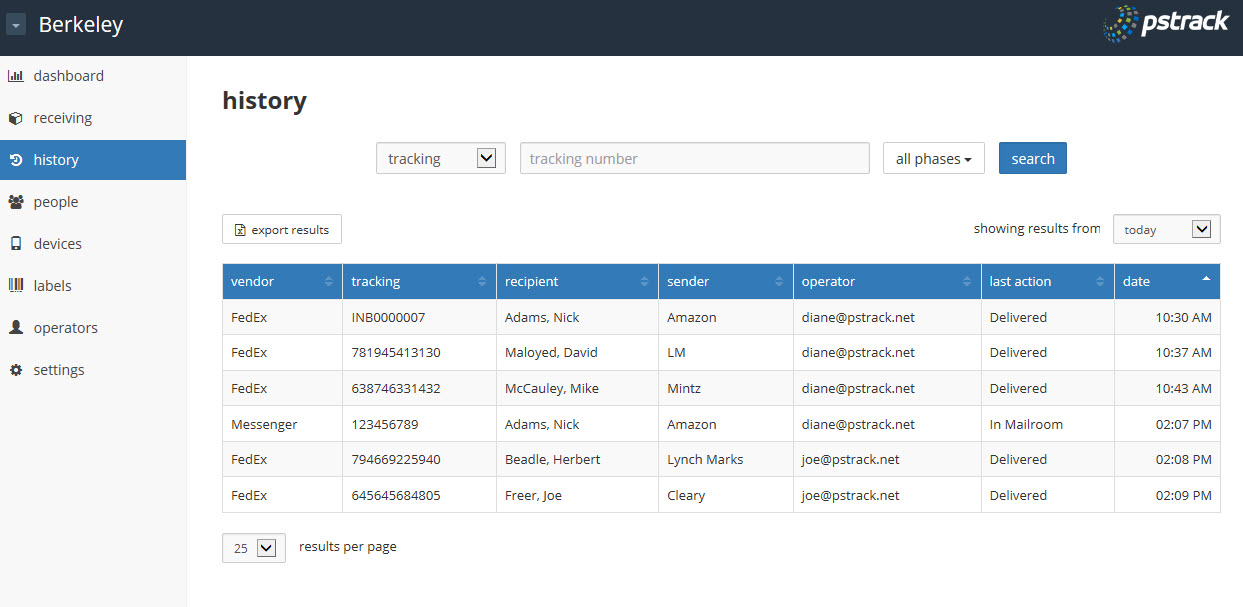
To view history/status for packages:
- Open the PS|Track web application.
- From the left menu, click on history.
- The history page defaults to show all phases for all packages in today's date range.
- Click on the down arrow next to tracking to filter by recipient, sender or operator.
- Click on the down arrow next to all phases. Check the box(es) by in mailroom, out for delivery or delivered to filter results.
- Click on the down arrow in the showing results from box to filter by other date criteria.
- Click the up/down arrows next to each column heading to sort the data in ascending or descending order.
- Results can be exported to Excel by clicking the export button.
0 Comments