
Click here to view this article in full screen.
You can watch our video, and/or follow our step by step instructions below!
Click here to view this video in full screen.
To add people (recipients) you must be a member of the mailroom manager, company admin or finance security access groups:
- Open the PS|Track web application.
- Above the left menu, click on the down arrow and select Company Admin.
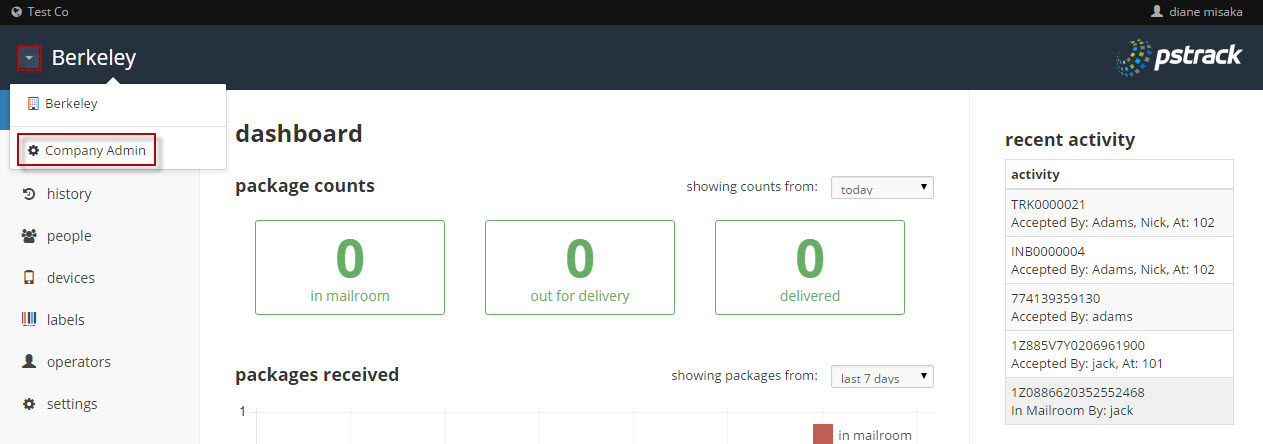
- From the left menu of the Company Admin page, click on the people button.
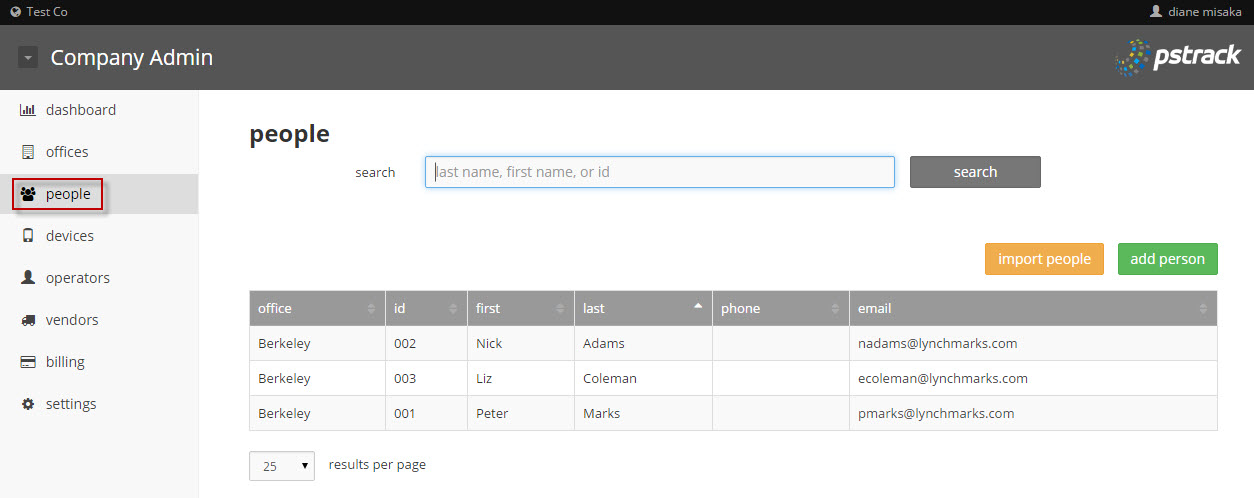
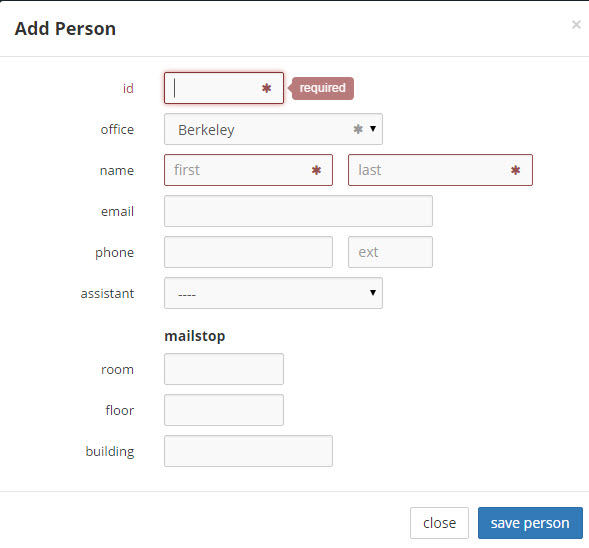
- To add recipients one at time, click on the green add person button and fill out the information as indicated below. (This option is also available from the left menu of the individual office page(s) by clicking the people button.) Fields with an asterisk are required. Click on the blue save person button when finished.
- To add or update multiple people, click on the gold import people button from the Add Person page.
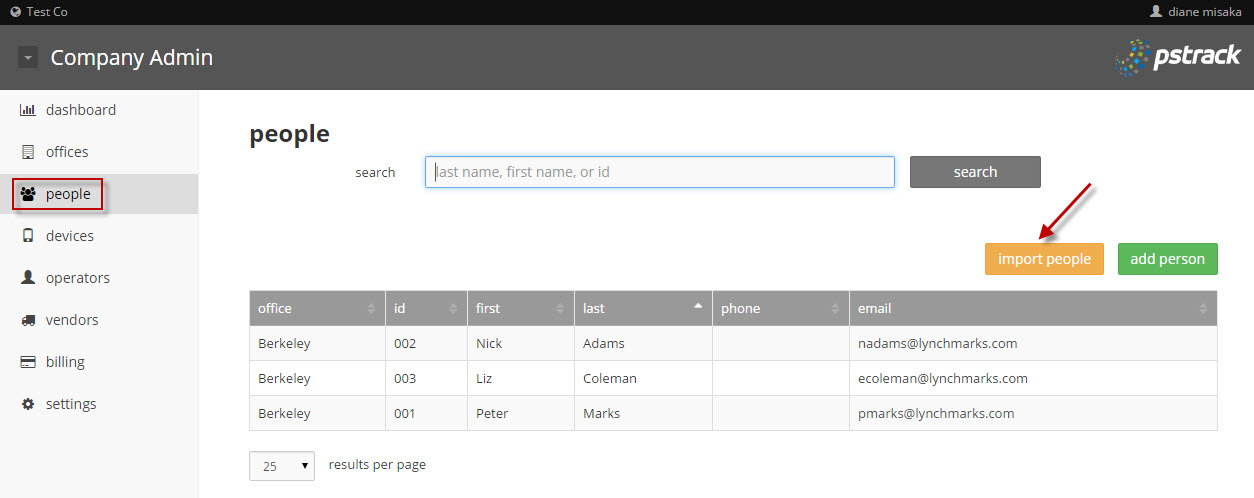
- Click on the choose button and browse to your previously prepared upload file and click on either the add/update people or replace all people radio button. Click on the upload file button to complete your action. (See attached below for an Excel spreadsheet template for creating an upload file.).
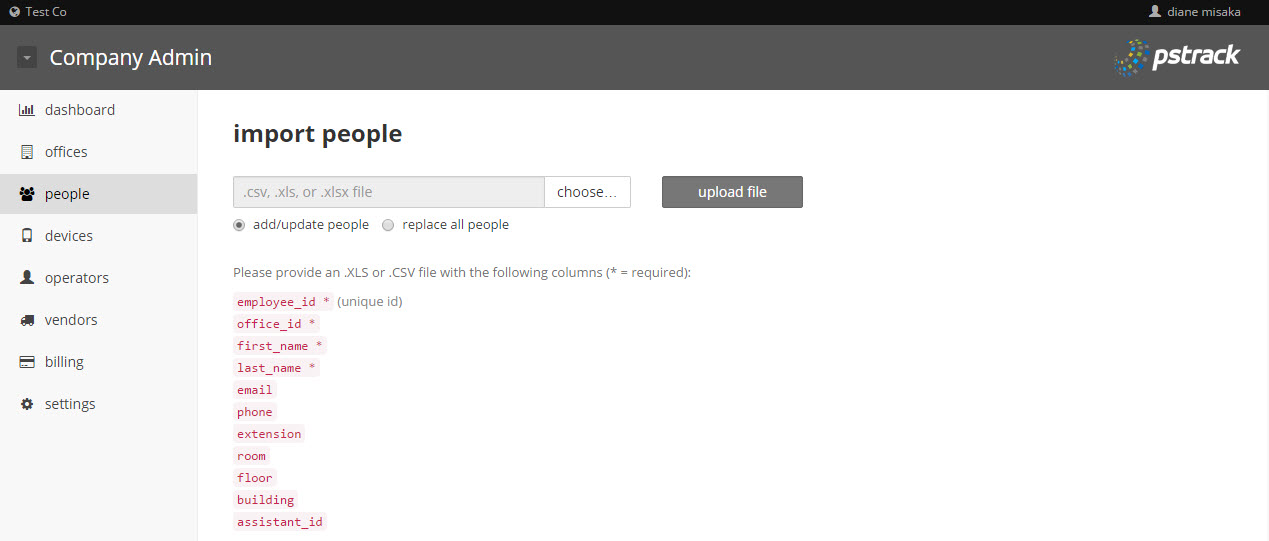
Note: Fields with an asterisk are required. office_id must match an existing office_id in PS|Track and assistant_id must match either an existing employee_id or an employee_id in the upload file. The replace all people option will delete all existing recipients and add all records in the upload file as "new".
tags: dashboard, receive, receiving, packages, people, person, import
0 Comments