
Click here to view this article in full screen.
This article assumes:
- The iPod/iPad has already been set up and connected to WiFi.
- The PS|Track application has been installed on your iOS device.
- At least one Handheld operator has been added through the web application.
Here is a video, with step by step instructions also listed below.
Click here to view this video in full screen.
To add an iPod/iPad device:
- Open the PS|Track web application.
- From the left menu, click on devices.
- Click on the green add device button.
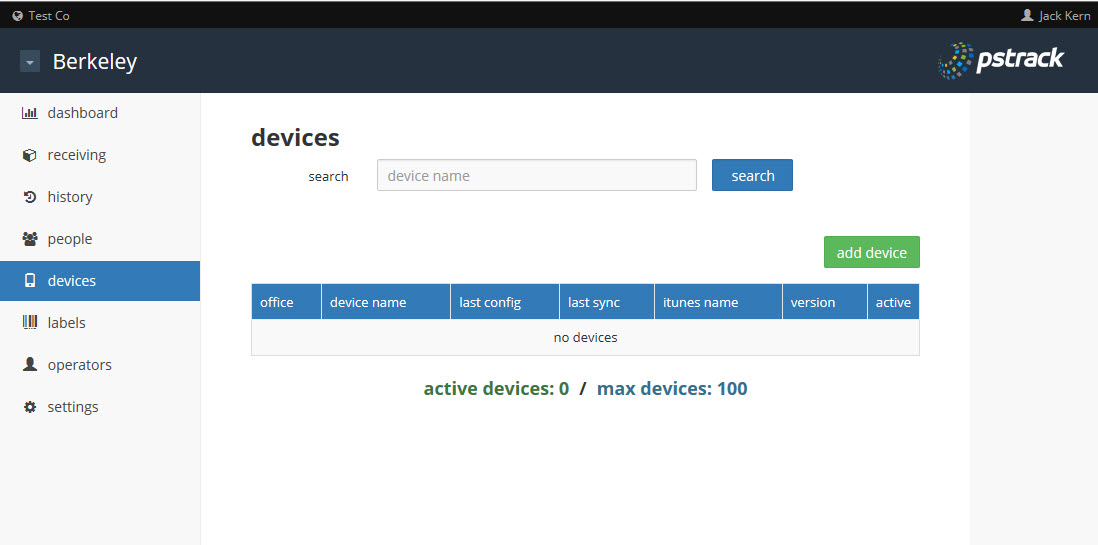
- From the Add Device pop-up window, select an office from the drop down and enter a device name.
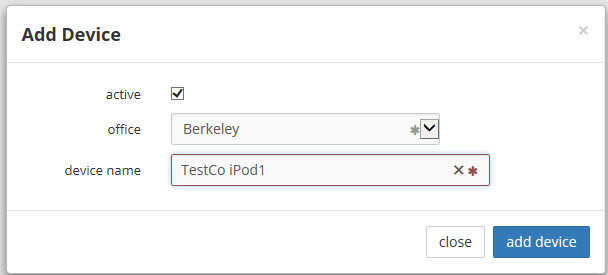
- Click on the add device button.
- The Register Device screen will appear with a QR code to register your device. This can either be printed or scanned directly from screen.
Launch the PS|Track application on the iPod/iPad.
- Click the Register Device button in the middle of the screen.
- Using the camera on the device, place the QR code on the printout or screen inside the view area.
- Click the scan button until the QR code is captured and locked in.
- Device Successfully Registered will appear upon successful registration.
tags: dashboard, devices, device, ipad, ipod, ios
0 Comments